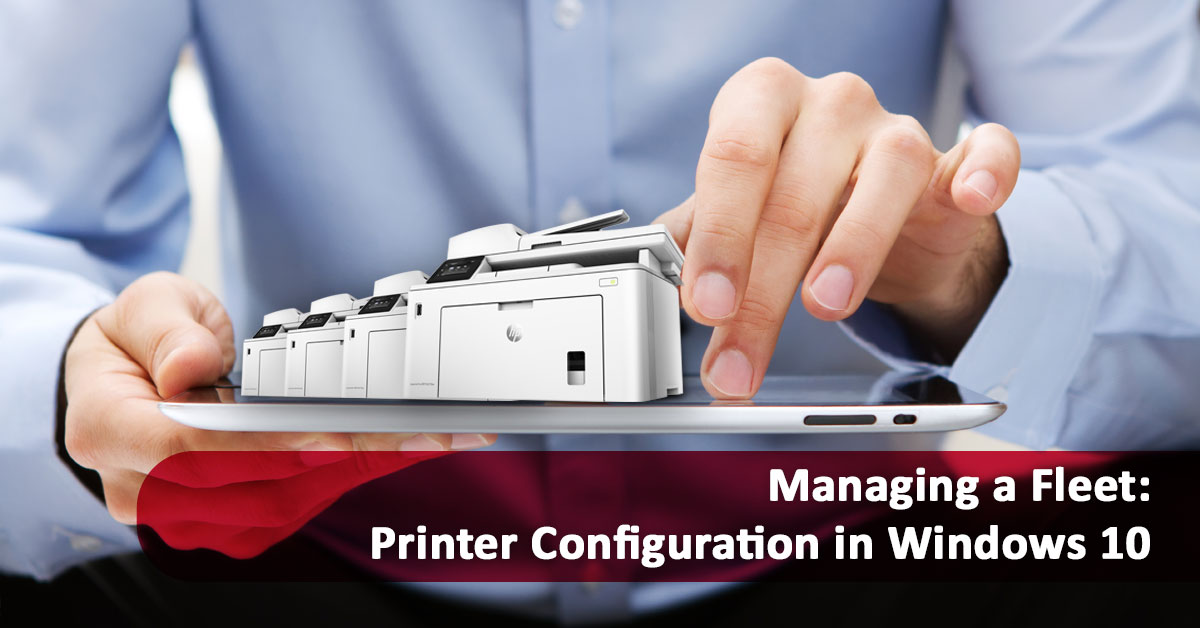
Most offices have a printer – many have several. These devices need to be connected, configured, and periodically managed to maintain an optimized work environment. As such, there are many different types of software and strategies to do so. However, many organizations don’t realize that Windows 10 comes with all the tools needed to manage a printer fleet. Printer configuration in Windows 10 is fast, easy, and a lightweight solution for smaller offices or offices which desire customized settings on individual devices.
Any office which is running Windows 10 on its devices can take advantage of the intuitive interface which Microsoft has created to help manage printers. Read on to learn when this strategy is best, and how to use it to its maximum potential.
When Is Windows 10 Best for Managing a Printer Fleet?
Although print management software makes it easy to manage a large fleet of printers which are densely interconnected with organizational processes, such solutions are not always best. Windows 10 comes with all the tools needed to manage printers on a fundamental level. For many businesses, this may be all that’s necessary. Consider using Windows 10 printer configuration when:
- It’s a small office with only a few printers and computers.
- There’s one central multifunction printer to which every computer is connected.
- Individual computers need custom printer device settings.
- The company has already invested in Windows 10 across all of its devices.
In these scenarios, the printer configuration in Windows 10 can adequately provide an office with the options and settings it needs to be productive. Next, let’s look at how to connect and configure a printer on Windows 10.
Printer Configuration in Windows 10
Microsoft makes it easy to connect and manage devices on Windows 10, especially printers. Here are four quick and useful skills to connect and configure a printer in Windows 10.
1. How to See the Printers on a Network
To see the printers on a network: first, go to the Control Panel. To get there, click on the Start Button, then type Control Panel. It will appear under Best Match. Click on the Control Panel app and look for Hardware and Sound. Choose View Devices and Printers. This screen will show all the electronic devices, multimedia devices, and printers connected to the computer. To gain more information about the printers, try some of the following:
- Click on the Printers (#) tab to select all printers to learn how many documents are in the queue from this machine.
- Right-click on an individual printer and select Properties to learn about its hardware.
- The green checkmark next to the icon indicates the default printer – that is, the printer to which this computer will automatically send jobs. To change this, right-click on a device and select Set as Default Printer.
2. How to Add a Printer
It’s easy to add a printer in Windows 10. From the Devices and Printers screen, click Add a Printer on the top navigation ribbon. Windows 10 will then scan for nearby printers connected to the WiFi network, or any which are directly connected to the machine. The wizard takes less than a minute to complete and automates most of the process.
3. How to Change Printing Preferences
Printing preferences alter how documents are printed. Tweaking these can make an office print environment more efficient and help reduce supply use. First, right-click on the specific printer where the settings need to be adjusted. Then, select Printing Preferences. The options available will depend on the printer. It will be possible to:
- Change the preferred paper size.
- Set a copy count for print jobs (default is one copy each time a document is printed).
- Choose monochrome or color as the default ink.
- Adjust settings for graphics or photos.
These settings can also be changed within the documents themselves. In Word or another document, navigate to File, then Print, then Preferences to access the same screen.
4. How to Change Device Settings
Device settings are different from printing preferences – they affect how the printer itself behaves in relation to a specific computer. To access device settings, navigate to the Devices and Printers screen. Right-click on a printer, then select Printer Properties. These tabs allow more advanced tweaks including:
- The name, location, and print preferences to be accessed or changed under
- Access controls, such as which user accounts have permission to print or manage the printer settings, under
- The ability to make printers available or unavailable at certain times of the day, under
Device settings allow greater control over the way users interact with a printer on a specific computer. With device settings, a print environment can be tightened, streamlined, and secured.
Get More Office Productivity Tips From AISink
Printer configuration in Windows 10 is fast and easy, but still supports advanced features which give network administrators total control over the printing environment. Using the built-in settings is an efficient, cost-effective, and lightweight solution for companies which already use Windows 10 extensively on their computers.
AIS specializes in helping companies transform their workflow by supporting the best use of their devices. Contact us today to learn how we can help you use your printers to their fullest potential.